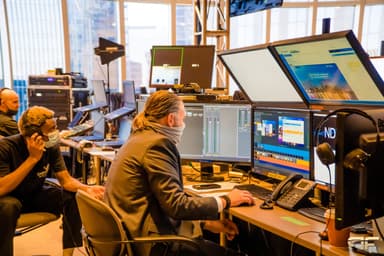
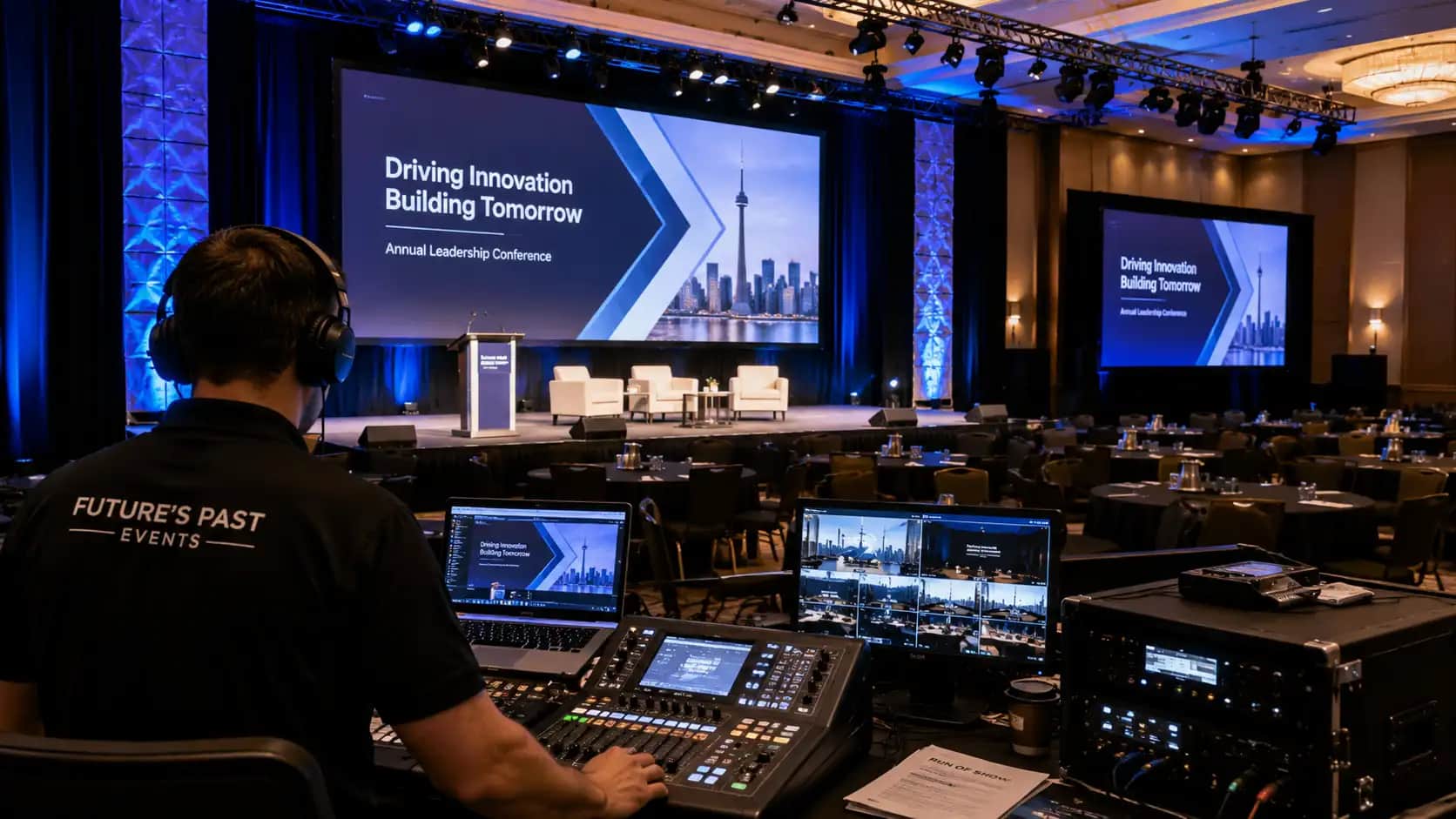
Conference presentation management is the process of collecting, checking, organizing, and delivering every speaker’s slides and media. It keeps the right file in the right room at the right time.
For conference organizers, this work can seem simple at first. However, the risk grows with every speaker, breakout room, video file, and last-minute revision. A clear system protects the schedule, supports presenters, and gives the audiovisual team time to prepare.
This guide explains how to build a reliable presentation workflow for a conference in Toronto or the GTA.
What Is Conference Presentation Management?
Conference presentation management covers the technical journey of a speaker’s content. It begins when the organizer sends presentation requirements. It ends when the approved file appears correctly on screen during the session.
The process often includes:
- Setting file and format requirements
- Collecting slide decks and videos
- Tracking submission status
- Checking fonts, links, videos, and aspect ratios
- Controlling file versions
- Organizing content by date, room, and session
- Loading files onto show computers
- Testing content before the audience arrives
- Managing approved last-minute changes
- Creating backup copies
Speaker management is broader. It may include contracts, travel, biographies, headshots, and session details. Presentation management focuses on the content that must run through the event’s audiovisual system.
Why Conference Presentation Management Matters
A conference may include dozens of people who create or approve content. Each person can use different software, fonts, video formats, and naming habits. As a result, email attachments and USB drives can quickly become confusing.
A controlled process reduces several common risks.
The wrong deck appears on screen
A presenter may send several files called “final.” Without version control, the operator may not know which one is approved.
A video does not play
A video may be linked from the presenter’s computer instead of embedded in the deck. It may also use a format that the show computer cannot read.
A font changes the slide layout
A presentation can look different when the correct font is not installed. Text may move, charts may shift, and important content may become difficult to read. Microsoft’s guidance on embedding custom fonts explains how font embedding can help preserve a presentation’s layout when it is shared or opened on another computer.
A session starts late
Connecting personal laptops between presentations takes time. It can also introduce adapter, display, resolution, and security problems.
The organizer loses visibility
Without a central tracker, the planning team may not know which files are missing, reviewed, revised, or approved.
Conference presentation management creates one source of truth. Therefore, the organizer, speaker team, and AV crew can work from the same information.
Build Conference Presentation Management Before Collecting Files
The best time to design the workflow is before the first speaker uploads a deck. Start by mapping the conference program.
Record:
- Session title
- Speaker name and contact information
- Date and start time
- Assigned room
- Session format
- Presentation length
- File status
- Special audio or video requirements
- Accessibility requirements
- Final approval owner
Next, decide who can approve a file. A speaker may own the content, while a communications team checks branding. A legal or compliance team may also need to review specific slides.
A clear conference presentation management plan prevents conflicting instructions. It also gives the AV team a defined point of contact when a change arrives.
Create Speaker Presentation Guidelines
Send presentation requirements early. Ideally, include them in the first speaker briefing rather than a final reminder.
Your guidelines should cover the following details.
Slide size and aspect ratio
Most modern event screens use a widescreen format. Still, the required ratio should match the event’s display design. Tell speakers whether to use 16:9 or another approved format.
Accepted file types
State whether the team accepts PowerPoint, Keynote, PDF, video, or other formats. When Keynote files are allowed, confirm that compatible playback equipment will be available.
Fonts and brand templates
Provide the event template when consistent branding is required. Ask presenters to use standard fonts or include approved font files when licensing permits.
Video and audio
Explain whether media must be embedded or submitted separately. Request the original video files as backups.
Naming rules
Use a standard file name such as:
Date_Room_Time_SpeakerLastName_SessionTitle_v01
A consistent name helps the team sort files and identify the newest approved version.
Submission deadline
Set an initial deadline that leaves time for review. Also define the cut-off for revisions. A deadline without a change policy often leads to unlimited show-day updates.
Accessibility
Ask speakers to use readable text, strong contrast, descriptive labels, and captions for recorded video. The Government of Canada’s accessible PowerPoint guidance offers practical recommendations for slide structure, text, images, media, and accessibility checks. Confirm how live captions, interpretation, or assistive services will appear in the room and online.
Use a Central Submission and Tracking System
Email can work for a small meeting. However, it becomes difficult to manage when a conference has many speakers or concurrent sessions.
Use one controlled location for file submission. Depending on the event, this may be:
- A secure upload portal
- A shared cloud folder with restricted permissions
- Event-management software
- A presentation-management platform
- A locally hosted system for on-site use
The conference presentation management lead should also maintain a status tracker. Useful labels include:
- Not requested
- Requested
- Received
- Under review
- Changes required
- Approved
- Loaded
- Tested
- Updated on site
Do not overwrite files without keeping a controlled backup. Instead, use version numbers and record the approval time.
For sensitive conferences, confirm who can access, download, or modify each presentation. The security process should match the content and the organization’s policies.
Check Every Presentation Before Show Day
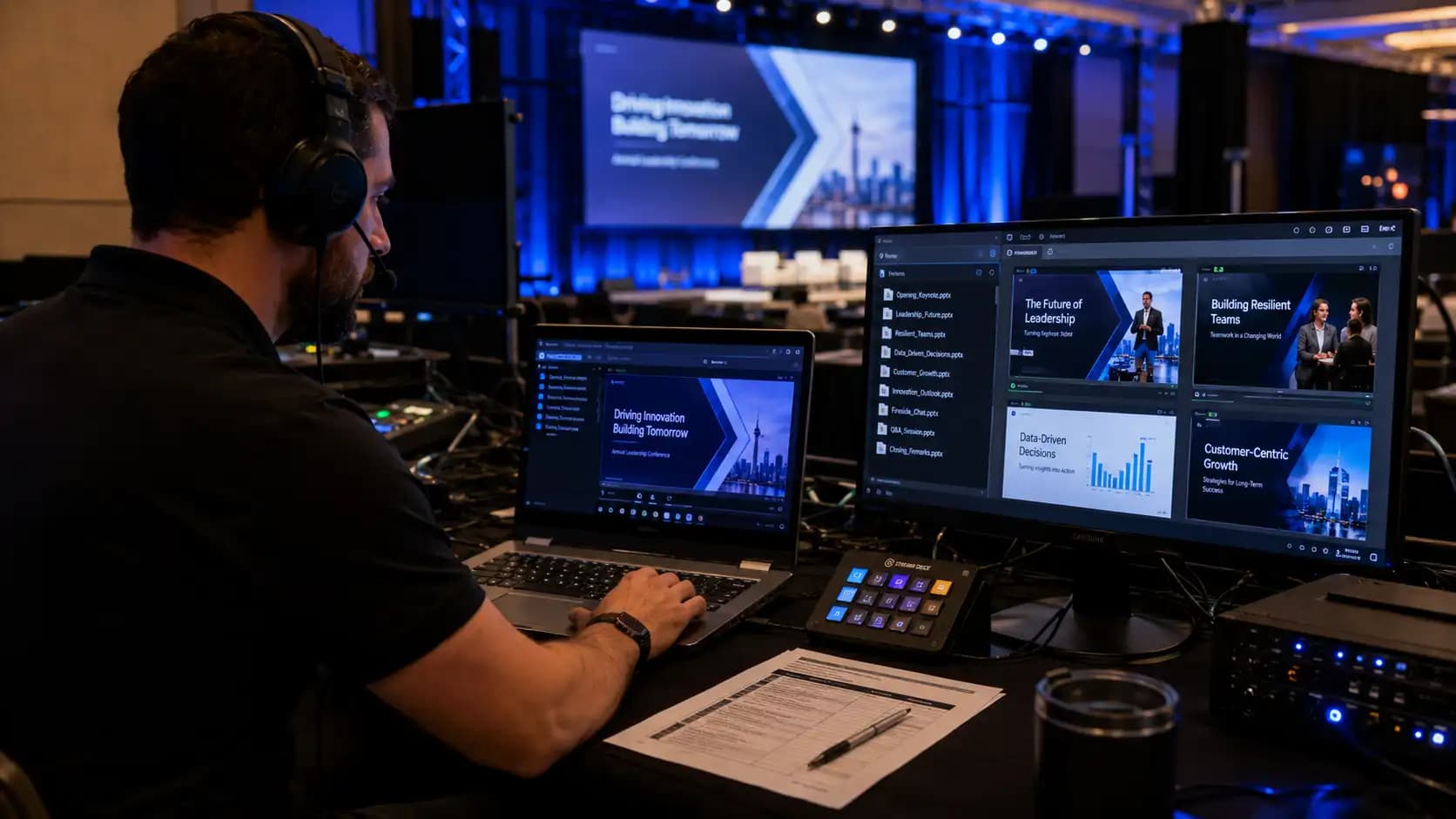
Receiving a file does not mean it is ready to present. Each deck should pass a technical review.
Use this conference presentation checklist:
- Open the file on the same operating system used for the show.
- Confirm the slide size and screen ratio.
- Check that fonts display correctly.
- Click every link that must work live.
- Play every embedded video from start to finish.
- Listen to all audio files.
- Check animations and slide transitions.
- Confirm that speaker notes will not appear on the audience screen.
- Review charts and text from an audience-viewing distance.
- Scan for blank, duplicated, or hidden slides.
- Confirm the approved version and file name.
- Save a backup copy in an independent location.
When a deck includes a live website, software demonstration, or cloud-based media, prepare a fallback. This may be a local video recording, screenshots, or a PDF version.
Plan a Speaker Ready Room
A speaker ready room gives presenters a controlled place to review content before their sessions. It can be a separate room or a clearly managed station near the conference space.
A useful speaker ready room may include:
- A check-in desk
- Presentation workstations
- The same fonts and software used on show computers
- Headphones for media review
- A technician or presentation manager
- A confidence-monitor preview
- A clear revision and approval process
- A secure network connection
- Local and remote backups
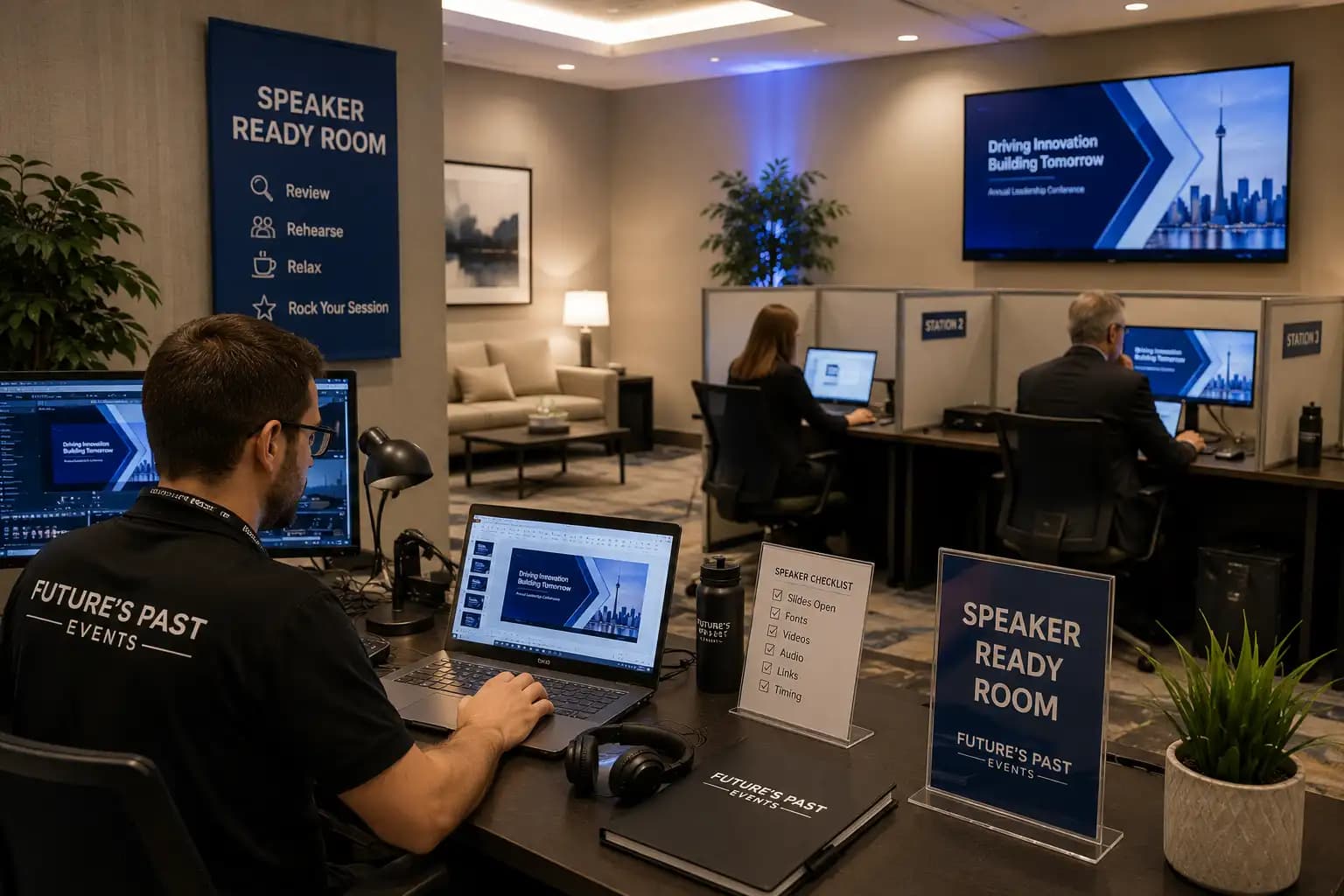
Speakers should know when to report to the room. For example, a conference may require final check-in at least 60 minutes before each session.
The ready room should not become an uncontrolled editing area. Changes must follow the event’s version rules. Once a revised file is approved, the previous show copy should be replaced and archived.
Connect Conference Presentation Management to the AV Plan
Conference presentation management cannot operate separately from the wider production plan. The workflow must match the rooms, screens, playback systems, staffing model, and event run of show.
Discuss the following questions with the AV production team:
- Will presenters use a central show computer or personal laptops?
- How many rooms will run at the same time?
- How will files move from the ready room to each room?
- Will the system use a local network, cloud storage, or manual transfer?
- Who will operate slides?
- Will presenters have a confidence monitor?
- Will remote speakers share their own screens?
- Are sessions being recorded or live streamed?
- How will videos and audio feed into the sound system?
- What backup playback devices will be available?
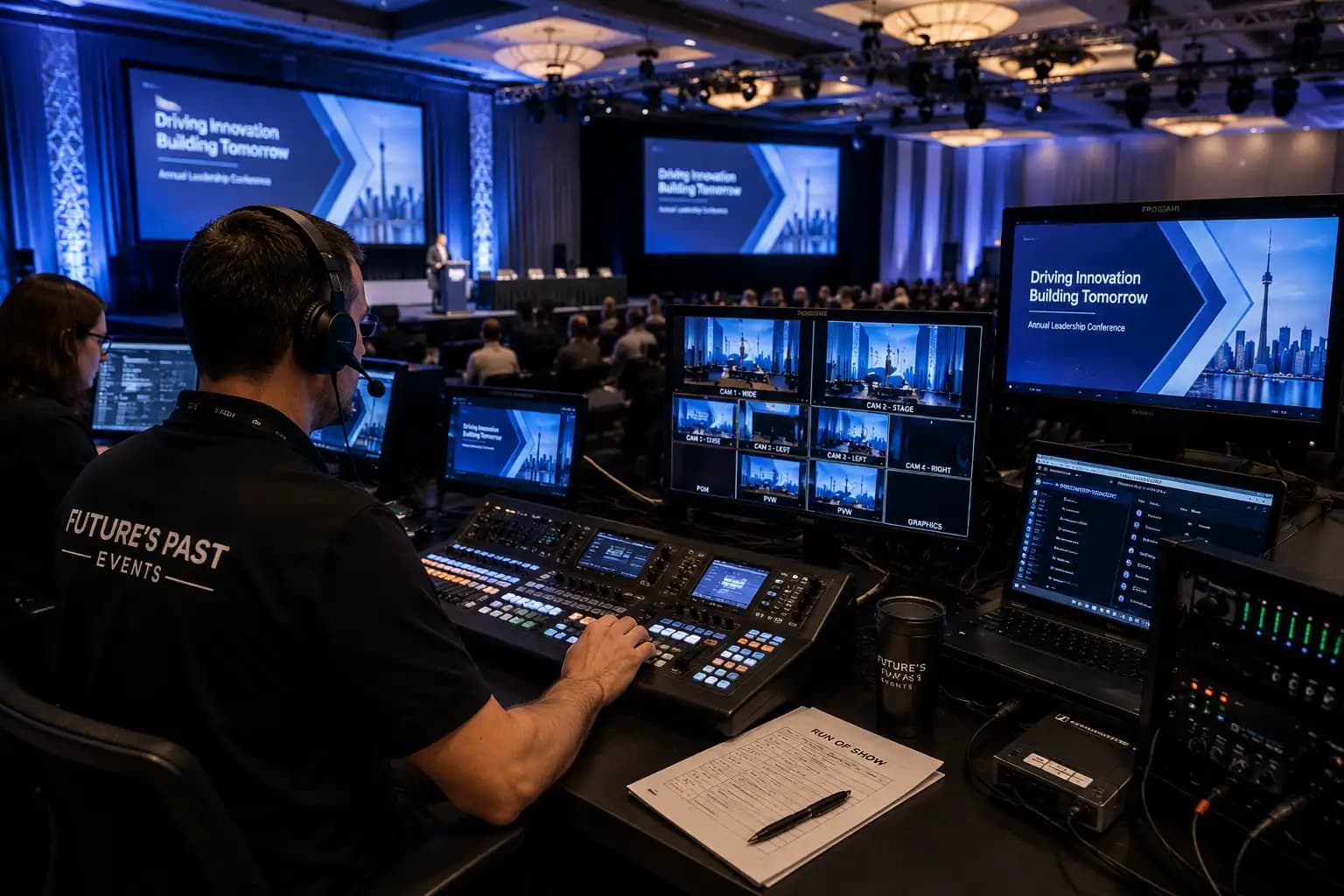
For multi-room conferences, assign a consistent folder structure and naming method. Each room technician should receive a current session list and approved content package.
Rehearse the Full Presentation Workflow
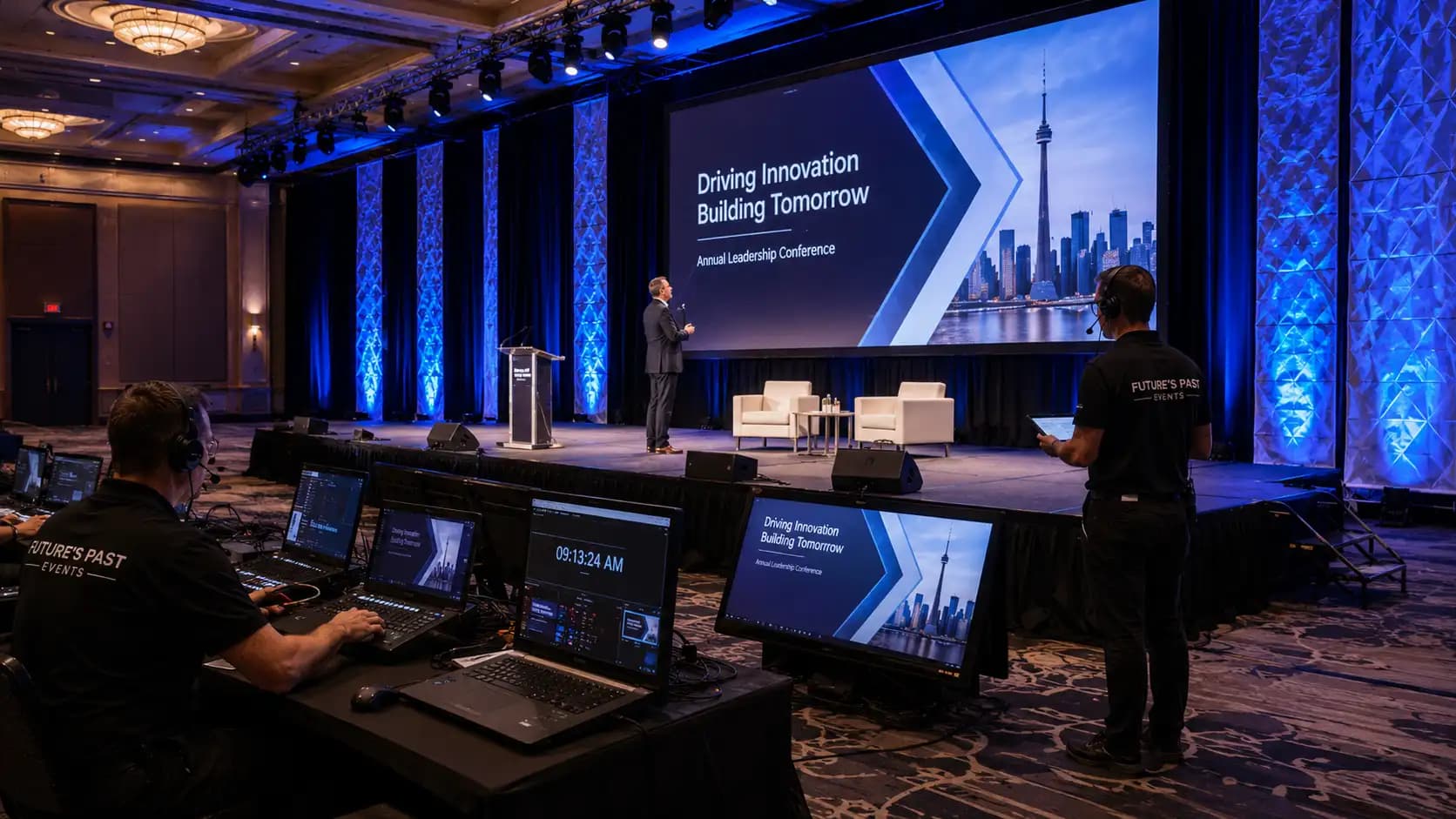
Conference presentation management should be tested alongside microphones, lighting, and video. A rehearsal should confirm that content can move safely from submission to playback.
During rehearsal:
- Load the approved files
- Test presentation remotes
- Confirm confidence-monitor content
- Check videos through the full audio system
- Review stage entrances and exits
- Practise handoffs between presenters
- Test remote speaker connections
- Confirm timing cues
- Check recording and streaming outputs
- Simulate a backup-file recovery
Keynote speakers, panel moderators, remote presenters, and speakers with complex media should receive priority rehearsal time.
When every presenter cannot attend, the technical team should still test every approved deck. The organizer should also use an event rehearsal checklist to confirm timing, responsibilities, accessibility, and contingency procedures.
Set Rules for Last-Minute Changes
Last-minute changes are common. The goal is not to ban them. Instead, create a safe way to manage them.
A practical change process should answer four questions:
- Who may request a change?
- Who approves it?
- Who updates the tracker?
- Who confirms that the new file reached the correct room?
Set a clear cut-off before each session. After that point, only urgent corrections should be accepted.
Never allow a new USB file to bypass the approval and testing process. Even a small text edit can introduce an older version or break embedded media.
When a change is approved, rename the file, update its status, test it again, and confirm delivery to the correct operator.
Prepare Backups for Critical Sessions
Redundancy should reflect the importance and complexity of the program.
For keynotes and executive sessions, consider:
- Two synchronized playback computers
- Independent copies of every approved file
- Local copies of cloud-based content
- Backup presentation remotes
- Spare adapters and signal paths
- Original video and audio files
- PDF versions of slide decks
- A printed contact and session list
- A fallback holding slide
- A clear decision-maker for technical changes
The audience may never see these safeguards. That is the point. Good production planning keeps recovery quiet and fast.
Backup plans should also be rehearsed. A spare computer is not useful when the team does not know how to switch to it quickly.
Common Presentation Management Mistakes
Conference organizers can prevent many issues by avoiding these habits.
Collecting decks only by email
Email creates duplicate attachments, unclear versions, and limited team visibility.
Letting every presenter use a personal laptop
Personal devices can create slow changeovers and unexpected compatibility issues.
Accepting files without testing them
A file that opens on one computer may not work correctly on the show system.
Using “final” as the version name
Use numbered versions, approval status, and timestamps instead.
Allowing unrestricted show-day changes
Every update should have an owner, approval, technical check, and confirmed destination.
Forgetting breakout rooms
Smaller rooms still need organized files, trained operators, and backup plans.
Treating presentation support as an isolated task
Slides, audio, video, lighting, recording, captioning, and streaming are connected. Plan them together.
Conference Presentation Management Timeline
The exact schedule depends on the event. However, this sample timeline gives organizers a useful starting point.
Four to six weeks before
- Finalize speaker requirements
- Confirm templates and file formats
- Build the session tracker
- Assign approval responsibilities
- Choose the submission system
Two to three weeks before
- Open file submission
- Send reminders
- Begin technical reviews
- Flag missing media and fonts
- Schedule priority rehearsals
One week before
- Confirm approved versions
- Organize files by room and session
- Prepare playback computers
- Create local and independent backups
- Share status reports with event leads
One day before
- Load and test all available content
- Run technical rehearsals
- Confirm ready-room procedures
- Test the transfer process
- Review late-change rules with the team
On show day
- Check speakers in
- Approve and track changes
- Confirm files in each room
- Monitor session progress
- Archive final show versions
After the conference
- Secure or delete files according to policy
- Deliver approved recordings
- Document issues and improvements
- Update the process for the next event
How Future’s Past Events Supports Conference Presentation Management
A smooth conference depends on more than equipment. It requires a production process that connects speakers, content, rooms, technicians, and timing.
Future’s Past Events supports conference organizers with professional audiovisual production, staging, lighting, video, hybrid-event capabilities, technical rehearsals, and live event support.
Early coordination with an experienced conference production team gives the crew time to review the program, understand speaker needs, design the playback workflow, and prepare suitable backups. It can also help organizers identify display, sound, staffing, and venue limitations before they affect the agenda.
Planning a conference with multiple speakers, rooms, remote participants, or media-heavy presentations? Contact Future’s Past Events to discuss a presentation and audiovisual plan built around your agenda, venue, audience, and production goals.
Related posts
Top Strategies for Hosting a Successful Virtual Conference
Constantly evolving event trends can be a little challenging to comprehend. A virtual conference is now a necessity of modern work life due to the increase of hybrid and remote working. Nevertheless, as we will see when we examine some of the more typical problems that might arise, they are undoubtedly not without…
Why Virtual Events Boost In 2022?
Nowadays, many people wrongly believe that virtual events are ending due to the constant development of vaccines that fortunately have controlled the pandemic situation. However, the truth is that virtual events boost during 2022, but only in a more hybridized format that is advantageous for hosts and attendees…
10 Groundbreaking Virtual Events That Will Take Place In 2022
Virtual events will continue to take center stage. You’ll need some interesting virtual event ideas to keep up with these new trends! They bring together hosts and participants from all around the world in a virtual area. It is becoming increasingly accessible to all. Also, they help to reduce the cost of putting on…