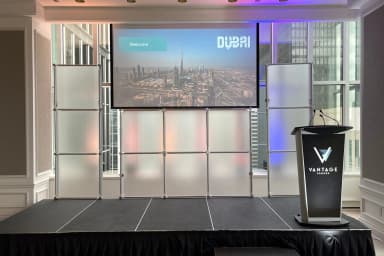
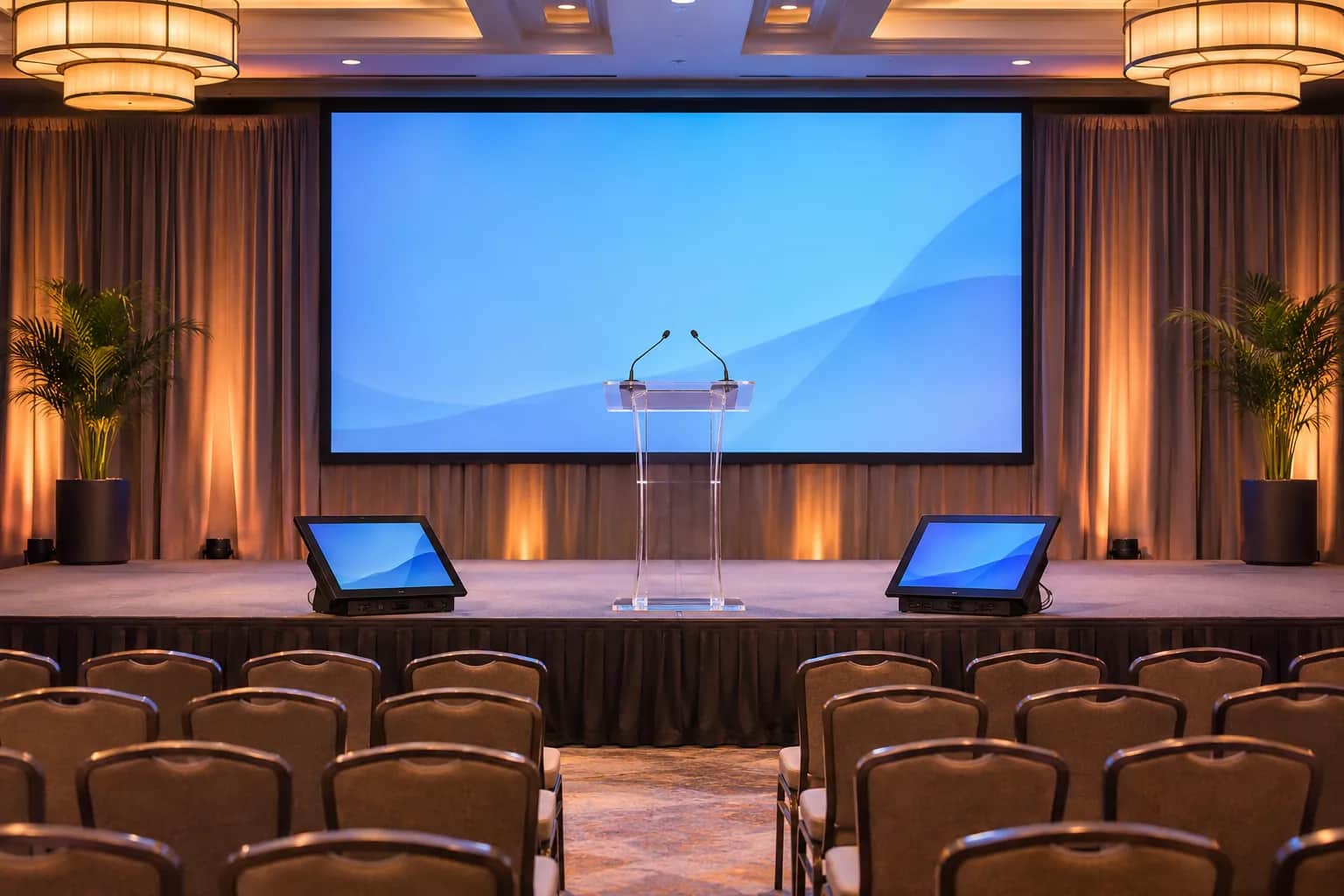
A conference speaker has three jobs on stage: say the right thing, stay on time, and connect with the room. Good speaker AV makes all three easier. The presenter sees their slides and their time without turning around, the back row sees their face, and every word reaches the room and the recording.
Most of that support is invisible to the audience, which is why it often stays off the AV spec until the rehearsal, when it is too late to add. This guide covers the speaker side of conference AV: confidence monitors, IMAG, teleprompters, microphones, timers, slide control, the lectern, stage layout and the speaker ready room. It ends with a checklist and an example spec for a 300-person general session that you can adapt for your own brief.
What Presenters Need on Stage
Speaker AV answers five questions for every person who will stand on your stage:
- What can they see? Their slides, their notes or script, and the time they have left, without turning their back on the audience.
- How are they heard? The right microphone for the way they present, with a spare ready.
- How are they seen? Light on their face and, in larger rooms, a camera shot on the screens.
- How do they control the show? A clicker that works every time, and a way to get a message to the technical table.
- Have they tried it? A walk of the stage and a microphone check before the audience arrives.
This sits inside your wider audio visual requirements for the event. Slide decks, file deadlines and version control belong to conference presentation management, and the show-day headset and radio plan belongs to your event communication plan. This guide stays on the stage, with the person at the lectern.
Confidence Monitors
A confidence monitor is a screen that faces the presenter instead of the audience. It usually sits at the front edge of the stage (downstage), angled up toward the lectern and the area where the presenter will stand. It shows them what the audience is seeing, so they can keep facing the room instead of turning to read the big screen behind them.
What a confidence monitor can show:
- The current slide and the next one, so the presenter can set up the transition before they click.
- Speaker notes, for presenters who use them. This needs a presenter view output from the show computer, so tell your AV team in advance.
- A countdown timer, as an overlay or on a second monitor.
- Short messages from the technical table, such as "5 minutes" or "Please wrap up".
- The program feed or a remote speaker, for panels with someone joining online.
How many you need, and where they go:
- One monitor is the minimum for a single presenter at a lectern. Two, one on each side of the presenter's position, give someone who walks a screen wherever they stand, and let you put the slides on one and the timer and notes on the other.
- Panels need a monitor every seat can read, usually a pair at the front edge of the stage angled toward the chairs.
- Presenters who walk the whole stage benefit from a larger rear-of-house monitor at the back of the room, above the audience's heads, so they can check it while looking out at the room.
- Keep them low and out of the shot. Floor monitors on a raised stage can block the front rows' view of the presenter and appear in the camera's frame. Sit in the front row during setup and look at the camera picture before you sign off the position.
Size matters too. The monitor has to be readable from the presenter's farthest standing position, not just from the lectern. A presenter squinting at a small screen will turn around to the big one anyway.
IMAG: Putting the Presenter on the Big Screen
IMAG (image magnification) puts a live camera shot of the presenter on the screens, so people at the back can see faces and expressions instead of a small figure at a lectern.
It earns its place when:
- The room is deep, or set at rounds, so the back tables are far from the stage.
- The stage is low, so many guests see the presenter between other people's heads.
- The moment is personal: a CEO's message, an award, a tribute.
- You are already recording or streaming, so the cameras are in the room anyway.
- A sign language interpreter is on stage, and the people who rely on them need to see them clearly.
In a room of 300, IMAG is a choice rather than a necessity. In a long ballroom, a session people will watch again later, or a keynote that has to land, it is often the upgrade with the most visible effect.
What IMAG takes:
- A camera with an operator, usually on a riser near the back of the room, on the centre line, with a lens long enough for a head-and-shoulders shot. A second camera covers wide shots and panels.
- A switcher and someone to run it, deciding when the screens show slides, the presenter, or both side by side.
- Screens to put it on. A common layout uses side screens for IMAG and a centre screen for slides. In smaller rooms, one screen can carry the slides and the camera shot side by side. Our guide to LED wall vs projector covers the screens themselves.
- Front light on the presenter. A camera needs more light on a face than the eye does. Without it, IMAG shows a dim, flat presenter. Our lighting team plans speaker light with the camera in mind.
Watch the delay
Every device between the camera and the screen adds a little delay. A typical IMAG chain puts the picture one to five frames behind the live sound, and downstream processing alone can add up to six frames. The audience hears the presenter's voice at once, so a long chain shows up as lips that move after the words. Ask your AV team to keep the IMAG path as short as possible, and check lip sync from the back of the room during the rehearsal, not just from the technical table.
Teleprompters: Presidential Glass, Floor and Rear-of-House
A teleprompter shows the presenter a scrolling script. It suits leaders who must deliver an exact message, such as results, a reorganization or a merger announcement, and anyone reading words that legal or communications teams have approved. It is not for everyone. A presenter who has never used one can sound like they are reading, which is worse than speaking from notes.
There are four common setups:
- Presidential (conference) prompter. Two tall stands, one on each side of the lectern, each holding a pane of beamsplitter glass at eye level with a monitor at its base. The presenter reads the reflected text, and the audience sees through the glass. With a stand on each side, the presenter looks from side to side, which reads as addressing the whole room.
- Floor prompter. The script runs on monitors at the front of the stage, often the same ones used as confidence monitors. It is simpler and cheaper, but the presenter looks down to read, which the audience and the camera both notice.
- Rear-of-house prompter. A large monitor at the back of the room, above the audience, shows the script. The presenter looks straight out and can walk the stage. The text has to be big to read at that distance.
- Camera prompter. Glass in front of the camera lens, for recorded video messages. It is a different job from a conference stage, unless a presenter is speaking mainly to a remote audience.
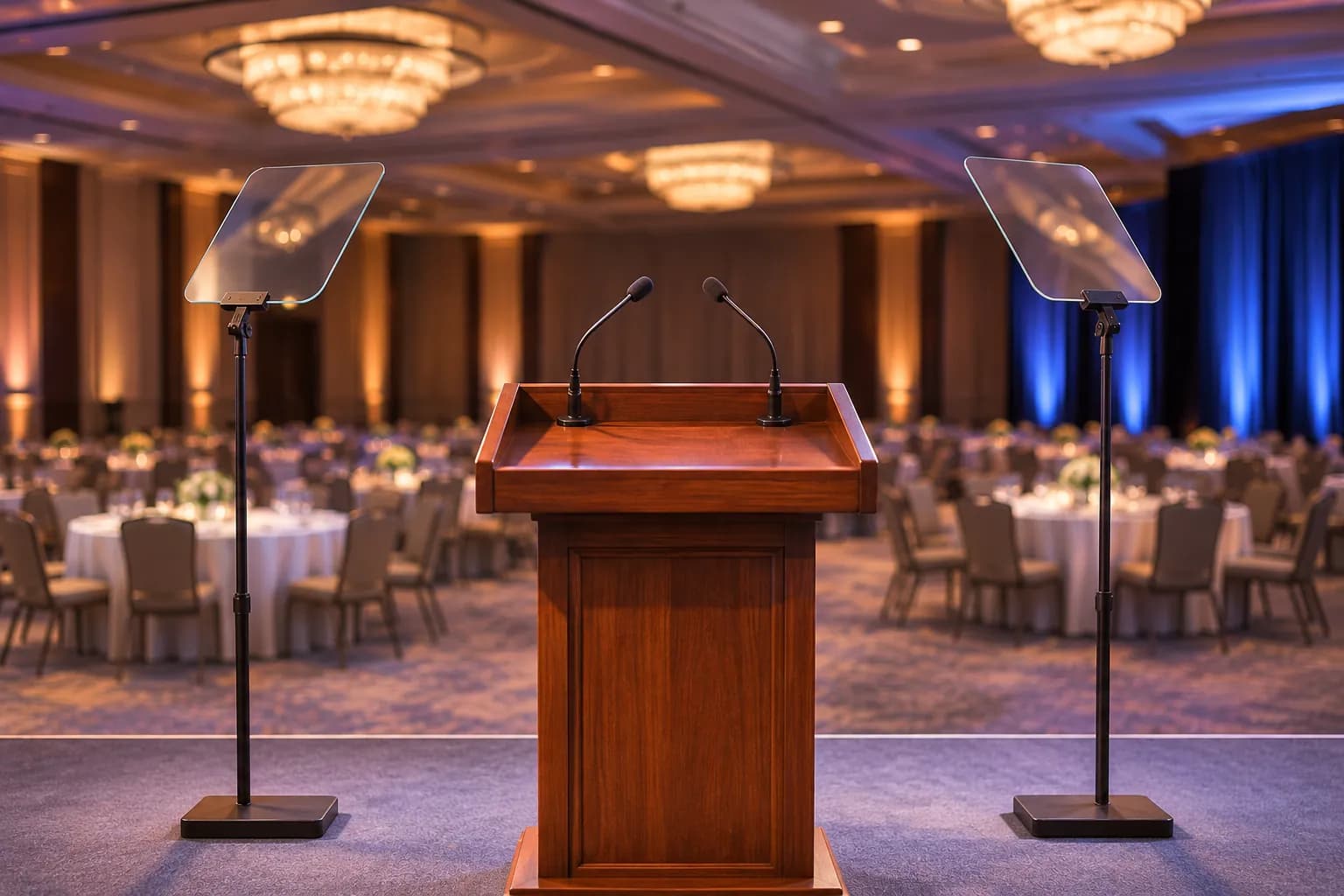
What a teleprompter needs to work:
- An operator who follows the presenter's pace, slowing down and speeding up with them, and who can find their place when they go off script.
- A script locked early, with one named person who approves changes on show day.
- Rehearsal on the real prompter. Even a short session on the actual glass, in the actual room, is the difference between reading and presenting.
- A printed copy of the script on the lectern, in case anything fails.
Prompters and their operators are often booked separately from the rest of the AV, so ask your provider early whether they supply one or bring in a specialist.
Microphones: Lavalier, Headset, Handheld or Lectern
The right microphone depends on how each person presents, not on what is in the kit. Match the microphone to the presenter.
| Microphone | Best for | Watch out for |
|---|---|---|
| Lectern (gooseneck) | Presenters who stay at the lectern, scripted remarks | The presenter stepping away or turning their head; adjusting the height between speakers |
| Headset (earset) | Presenters who walk and gesture, quiet voices, long keynotes | Some presenters dislike the look; it has to be fitted properly |
| Lavalier (lapel) | Executives who want something discreet, panelists, presenters on camera | Clothing and jewellery noise; more prone to feedback |
| Handheld | Hosts, MCs, award presenters, audience questions | Ties up a hand; presenters often let it drift away from their mouth |
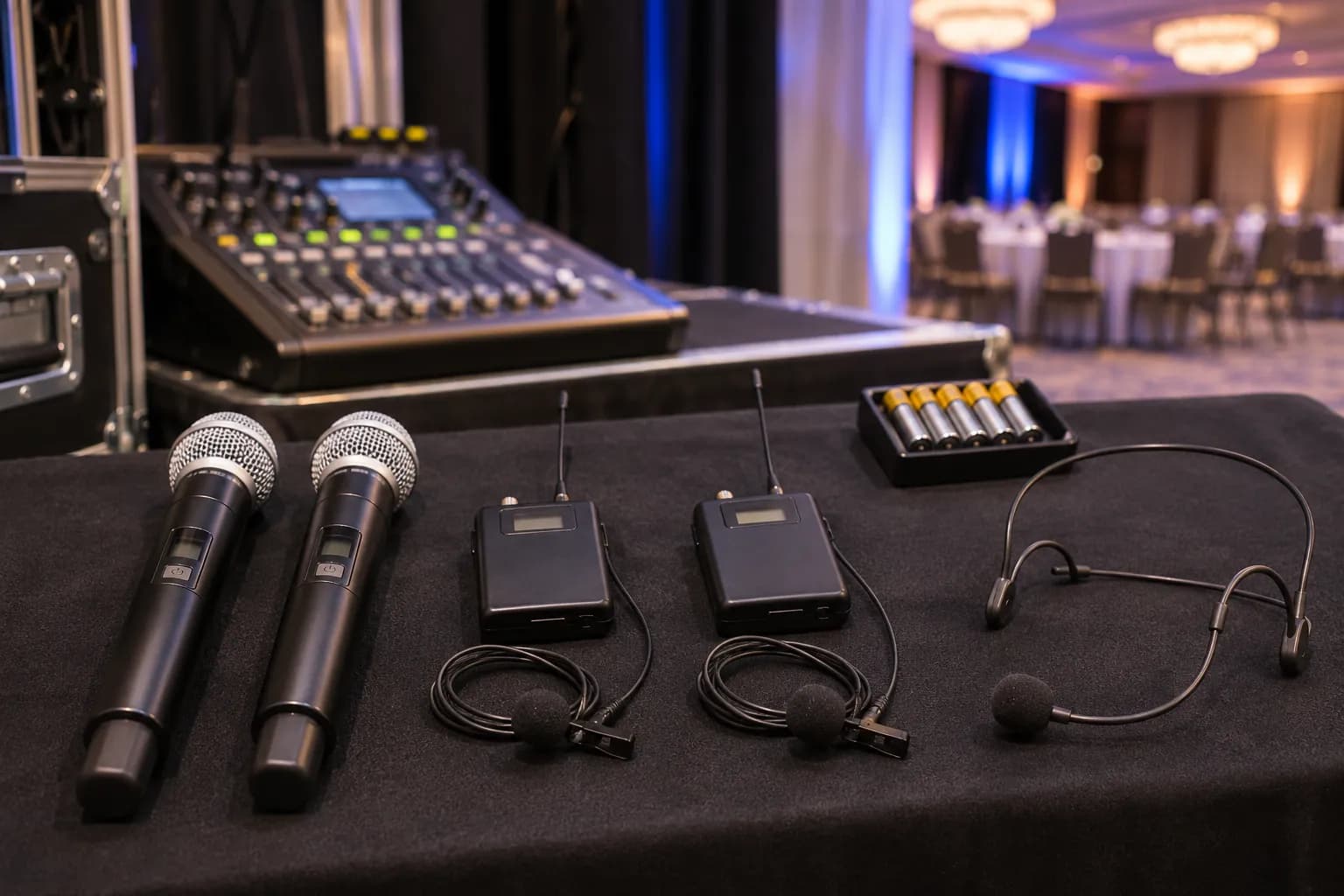
Headsets give the most reliable sound for a moving presenter. The capsule sits next to the mouth, so the sound engineer gets far more level before feedback, and the sound stays consistent as the presenter turns their head. That is why many engineers prefer headsets for spoken word. The capsule belongs near the corner of the mouth, not in front of it.
Lavaliers are discreet, but placement matters. The usual spot is about halfway down the sternum, 12 to 20 cm (5 to 8 inches) below the chin. Keep the microphone clear of necklaces, lanyards and lapels that rub.
Lecterns get two gooseneck microphones, not one. Twin goosenecks cover a presenter who turns from side to side, and if one fails, the other is already live.
Panels get one microphone per person. Passing a microphone along a panel kills the conversation, and the person who just started talking is rarely the one holding it.
Audience questions need a microphone too. A handheld carried by a runner, or a standing microphone in the aisle, lets the room and the recording hear the question. If neither is possible, the moderator repeats each question into their own microphone.
Brief presenters on wardrobe. Headset and lavalier transmitters clip to a belt or waistband. A dress without a waistband, or a jacket that will come off mid-talk, needs a plan before show day, not during the fitting.
Spares and power. Keep at least one spare of each type in use, tested and ready at the side of the stage, and change batteries or recharge before every session block, not once a day.
Wireless microphone frequencies in Canada
Wireless microphones share the airwaves with TV broadcasters, mobile networks and every other event in the building. In Canada, licence-exempt wireless microphones fall under ISED's RSS-210. They may operate in the TV bands, including 470 to 608 MHz, and in two narrow slices of the old 600 MHz band, 614 to 616 MHz and 653 to 663 MHz, on a no-interference, no-protection basis. The rest of that band now carries mobile networks: ISED moved wireless microphones out of 617 to 652 MHz and 663 to 698 MHz, and since November 15, 2018, microphones for those bands may not be sold in Canada.
What that means for a planner:
- Ask what bands your provider's wireless systems use. Older systems, or ones a speaker or a band brings from elsewhere, may sit in frequencies that are no longer allowed here.
- Expect frequencies to be scanned and coordinated on site. Open channels vary from place to place, and a downtown hotel ballroom shares the airwaves with broadcasters and the event next door.
- Tell your AV team about every other wireless system in the room: interpretation, hearing assistance, a band's in-ear monitors, another production's microphones. ISED's wireless microphone rules also cover the cue and control links production crews use, so those compete for the same channels.
Speaker Timers and Countdown Clocks
A countdown timer is the kindest way to keep a program on time. The presenter can see exactly how long they have left, so nobody has to walk on stage to stop them.
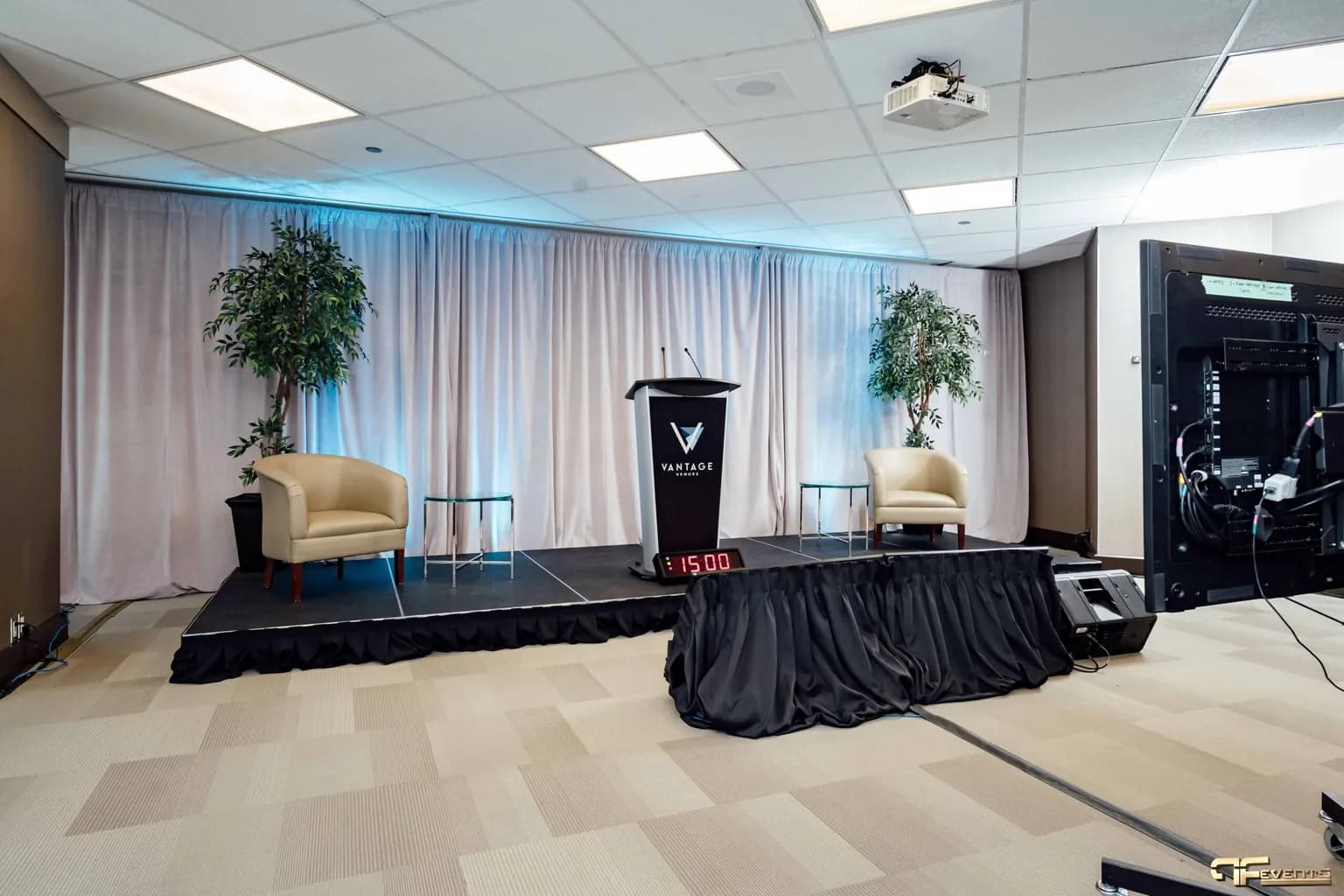
- Put it where the presenter looks. On the confidence monitors, as a standalone clock at the front edge of the stage, or both. Presenters who walk need one they can see from anywhere, which may mean a rear-of-house display.
- Run it from the technical table, from the run of show, so the presenter never has to start or reset anything.
- Agree when it starts. On the walk-on, or on the first word? Decide once and apply it to everyone.
- Use warnings. Many timers change colour at a warning point, such as five minutes, and at zero. Some count into negative numbers, so everyone can see by how much a session is running over.
- Agree what happens at zero. A "please wrap up" message on the confidence monitor? The moderator stepping in? A shorter Q&A? Put it in the speaker brief so nobody is surprised.
- Give panel timers to the moderator. The moderator manages time; the panelists manage the conversation.
Clickers, Slide Control and Talking to the Tech Table
Most presenters want to advance their own slides. That works when the clicker is part of the show system, not something brought from the office.
- Use a clicker that drives the show computer. At a conference, the slides usually run from a computer at the technical table, which may be at the back of the room. A clicker that works across a meeting room may not reach that far, so the AV team may extend the receiver toward the stage or use a presentation remote built for the distance.
- Test it from every spot the presenter will stand, including the far ends of the stage.
- Keep a spare of the same model at the lectern or with the stage manager.
- Agree a verbal backup. If the clicker fails, the presenter says "next slide" and the operator advances. Practise it once in the rehearsal so it feels normal.
- Let the operator roll the videos. The run of show marks each video cue, so the presenter does not need to find the play button.
- Test the presenter's own laptop in advance if they need it for a live demo, through the same switcher it will use on show day.
The files themselves, and the speaker's deadline for sending them, belong to your presentation management plan.
Presenters are not on the crew's headsets, so communication with them has to be simple and mostly one way. The usual tools are messages on the confidence monitor, a stage manager at the side of the stage with hand signals, and an agreed routine for problems. For example, if a microphone fails, the presenter keeps talking and the audio assistant brings a handheld. The full show-day chain, from the show caller to every crew position, is covered in our event communication plan guide.
Setting Up the Lectern
- Position. Place the lectern to one side of the main screen, so the audience can see both the presenter and the slides, and the presenter never stands in a projector's beam.
- Microphones. Two gooseneck microphones, adjusted for each presenter at the changeover by the audio assistant.
- Height. A standard lectern suits most presenters. Have a step ready for shorter presenters, and a plan for anyone who uses a wheelchair: a lower lectern or table, a lavalier or handheld, and an accessible route onto the stage. Our event accessibility checklist covers the rest.
- Light. A small reading light for notes, plus stage front light on the presenter's face, not just on the lectern top.
- The top. Space for a script or notes, the clicker and nothing else. Water goes on a shelf, away from the electronics.
- Branding. A logo panel on the lectern front, or a clear acrylic lectern that carries the logo, is visible in every photo and every IMAG shot.
Stage Layout and Sightlines
Speaker AV fills a stage quickly. Draw everything on the stage plan, then check it from the seats.
- Front edge: confidence monitors, the timer and any small speaker (wedge) that lets presenters hear video playback or a remote guest. Keep a clear walkway behind them.
- Lectern: to one side, clear of the screens.
- Panel: chairs angled toward the audience, with a confidence monitor every panelist can read.
- Entrances: stairs with handrails on the side presenters walk on from, a ramp if anyone needs one, and lit edges if the house lights go down.
- Marks: tape marks where presenters should stand, inside the lit area and the camera frame.
- Camera line: a clear line from the camera riser to the stage, with no chandelier, pillar or standing guest in the way, and a riser that does not block the seats behind it.
Then sit in the seats: the front row corners, the back row and the sides. Can you see the presenter, the slides and the IMAG? Our guides to event stage size and the venue walkthrough cover height, sightlines and access in more detail.
The Speaker Ready Room and the Run-Through
The speaker ready room is where presenters check their final files, and our guide to conference presentation management explains how to run it. For the AV team, it is also where each presenter's time on stage begins:
- Microphone fitting. Headsets and lavaliers fitted and tested by the audio assistant before the presenter walks to the stage.
- A preview of the confidence monitor, in the same layout the presenter will see on stage.
- The clicker, the timer and the prompter script, seen once before the real thing.
Then the run-through on stage. Each presenter walks on from the agreed side, stands on their marks, checks their microphone level, clicks through a few slides, sees the timer and the confidence monitor, rehearses with the prompter if they use one, and walks off. A keynote deserves a full run in the room. For other presenters, a short walk-through is often enough. Our event rehearsal checklist covers the full technical rehearsal.
Write what you learn into the run of show: walk-on side, microphone type, timer length, who introduces them, and any video cues.
Example: AV Spec for a 300-Person Conference General Session
Here is how this comes together for a typical one-day conference: 300 attendees in a hotel ballroom, theatre-style seating, an opening keynote by the CEO, three presenters, a four-person moderated panel, audience Q&A, and sessions recorded for later. Treat it as a starting point, not a template to copy. Your room, program and budget will change the numbers.
| Area | Example spec | Why |
|---|---|---|
| Stage | About 24 ft × 16 ft, raised and skirted, with stairs and handrails, and a ramp if needed | Room for the lectern, a four-person panel and the front-edge monitors |
| Lectern | One lectern with two gooseneck microphones and a reading light, off-centre | Covers the CEO's script and anyone who prefers to stand still |
| Presenter microphones | 4 wireless headset microphones, fitted in the ready room | One per presenter, so nobody is refitted on stage |
| Host and panel | 1 wireless handheld for the host, 5 wireless handhelds or lavaliers for the moderator and panelists | One microphone per person on stage |
| Audience Q&A | 2 wireless handhelds with runners | The room and the recording hear every question |
| Spares | 1 headset and 1 handheld, tested and ready at the side of the stage; fresh batteries before each session block | A failed microphone is replaced in seconds |
| Confidence monitors | 2 large displays at the front edge of the stage: current and next slide with notes on one, timer and messages on the other | Presenters keep facing the room |
| Rear-of-house monitor | 1 large display at the back of the room for the keynote script or the timer | Optional; useful for presenters who walk |
| Timer | Countdown run from the technical table, on the confidence monitors and a clock at the stage edge | The program stays on time |
| Teleprompter | Optional: a presidential glass pair with an operator for the keynote | Only if the CEO reads a scripted keynote |
| Screens | Two screens either side of the stage, sized for the back row, showing slides with the camera shot alongside | Readable slides and visible faces |
| IMAG and recording | 2 cameras (one operated on a riser at the back for close-ups, one wide) and a switcher at the technical table | The same cameras feed the screens and the recording |
| Lighting | Front light across the full width of the stage | Faces look right in the room and on camera |
| Playback | Show computer with every deck, a mirrored backup, one clicker plus a spare | No laptop swaps on stage |
| Crew | Audio engineer, audio assistant for microphones, playback and graphics operator, camera operator, director on the switcher, lighting operator, stage manager; prompter operator if used | Every speaker-facing item has an owner |
| Rehearsal | Technical rehearsal the day before or early on show day, with every presenter on stage | Problems surface while they can still be fixed |
That is 12 wireless microphones in use plus 2 spares, which is why frequency coordination belongs in the spec. On a smaller show, some crew roles can be combined. If the event also has a livestream or concurrent breakouts, add those separately: our guides to town hall AV and the breakout room AV checklist cover them.
If you are sending this spec out to several providers, our guide to writing an AV RFP shows how to make the quotes comparable.
Conference Speaker AV Checklist
When you confirm each speaker
- How do they present: at the lectern or walking, from slides or from a script?
- Will they use the show computer, or do they need their own laptop for a demo?
- Do any slides include video with sound?
- Microphone preference, and anything about wardrobe that affects it.
- Do they need a prompter, and when will the script be final?
- Accessibility needs: stage access, lectern height, captions, an interpreter position.
In the AV spec
- Every row of the example spec above, adjusted to your room and program.
- A stage plan showing monitors, wedges, marks, stairs and the camera line.
- A name against every speaker-facing item, from microphone fitting to the timer.
Show week
- Prompter scripts locked, with one approver for changes.
- Run of show updated with each presenter's walk-on side, microphone, timer length and video cues.
- Ready room schedule sent to every presenter.
Show day
- Wireless frequencies scanned and coordinated.
- Microphones fitted and checked before each walk-on; spares tested at the side of the stage.
- Confidence monitors showing the agreed layout, and the timer reset for each session.
- Clicker tested from every mark.
- IMAG lip sync checked from the back of the room.
- A printed script on the lectern for every scripted presenter.
Frequently Asked Questions
What is a confidence monitor at a conference?
A confidence monitor is a screen facing the presenter, usually on the floor at the front of the stage. It shows the current and next slide, and often notes, a countdown timer or messages from the technical team, so the presenter can keep facing the audience instead of turning to the main screen.
What does IMAG mean at an event?
IMAG stands for image magnification. A camera films the presenter and the shot is shown on the big screens, so people at the back of a large room can see faces and expressions. It needs a camera operator, a switcher, screens and good front light on the stage.
Does a conference speaker need a teleprompter?
Only if they need to deliver an exact script, such as a CEO's results message, and are willing to rehearse with it. Many presenters do better with notes on a confidence monitor. If you use a teleprompter, book an operator and lock the script early.
Is a lavalier or a headset microphone better for a presenter?
For a presenter who moves or gestures, a headset usually sounds better and gives the sound engineer more level before feedback, because the microphone sits next to the mouth. A lavalier is more discreet and suits executives and panelists, but it is more sensitive to placement and clothing noise.
How many wireless microphones does a conference need?
Give every presenter who wears a microphone their own, add one for each person on a panel, the host and the audience Q&A, then add spares. A general session with a keynote, several presenters, a four-person panel and Q&A can easily need a dozen wireless microphones, which is why frequencies have to be planned.
Who controls the speaker timer?
The technical table runs it from the run of show, so presenters never have to start or reset anything. On panels, the moderator watches the timer and manages time for the group.
Give Your Speakers the Stage They Need
Speakers remember how a stage made them feel. When they can see their slides, trust their microphone and know exactly how much time is left, they stop managing the room and start talking to it. The audience notices the difference, even if they never notice the AV.
Future's Past Events has spent over 20 years producing conferences, AGMs, town halls and corporate events across Toronto and the GTA. We supply wireless handheld, lavalier and headset microphones, confidence monitors, cameras for image magnification, lecterns and stage lighting, and we run through the program with your speakers so microphones, slides and walk-ons are settled before the audience arrives. Explore our corporate event AV and audio visual services, or contact our team with your agenda and speaker list, and we will help you spec it.
Related posts
AV RFP for Events: How to Write One and Compare AV Quotes
An AV RFP is how you turn your event's audio visual requirements into quotes you can actually compare. Send three AV companies a vague request and you get three different events back, each priced on its own assumptions. Send them a clear RFP and you get three answers to the same question…
Audio Visual Requirements for Events: How to Work Out What Your Event Needs
Audio visual requirements are the answer to a simple question: what does this event need so that every person in the room, and everyone watching from somewhere else, can hear clearly, see clearly, and follow what is happening? Get that answer right early and every later decision gets easier. Get it wrong and you…
LED Wall vs Projector: How to Choose the Right Screen for Your Event
LED wall vs projector is one of the first technical decisions in any event plan, and one of the easiest to get wrong. Both can put a large, sharp image in front of your audience. But they behave very differently in a bright room, a shallow room, or a room full of stage lighting, and…